
To enter text, place cursor over top of, type text here and type your name.
All lines of text (typing) are single lines
The labels to the left of rectangular boxes state what is to be placed inside the adjacent box or boxes.
Name:
To enter text, place cursor over top of, type text here and type your name.
The type text here will dissappear as soon as you begin typing.
Clear what you typed off and type text here will reappear.
Address:
The address box is made up of 4 individual lines of text.
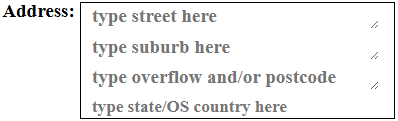
Each line is a single line of text which behaves almost exactly like the Name Box above.
To enter text, place the cursor within the label type street here and left click the mouse.
The single text box will activate as shown. Clicking on others will do same
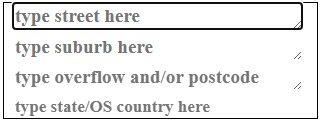
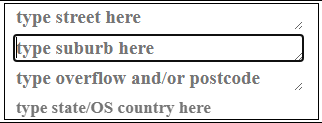
address lines
The address box is designed for simple common type addresses
(e.g. street name of "Flat 33 5464 A Little Wining Road, suburb Nowhere Else, postcode 111")
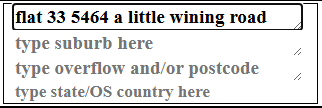
with suburb of "Nowhere Else' and postcode of "111"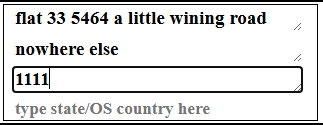
If you have something more complex then move the street name to "suburb"
then suburb to "overflow" and tack postcode after the bit of overflow
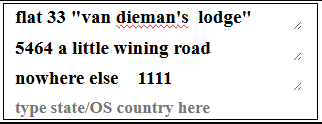
Last Line is for your "State Name" OR if your from overseas, your country name.
Club Names:
There is room for 3 club names, one on each single line. If you've got more than 3, Don't overflow the lines. It will only show 30 characters once the form is processed. The excess will be thrown away.
Telephone numbers:
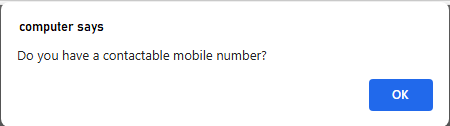
A phone number is important. The form is set to check for a mobile number. If one is not supplied, a warning will be issued every time the form checks your details.
If you want to supply more than 1 mobile number, there is room on the mobile line for 2 domestic mobile nubers.
ACA Membership:
 Put your ACA membership numbers into these boxes.
Put one number in each box. Each box will highlight when you "click" the mouse cursor in it.
 "2" in first box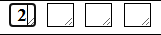
Completed with "2468" 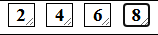
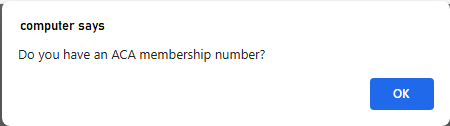
The ACA membership number is very important. If one is not entered a warning will be issued every time the form self checks.
Dance Level:
 These are simple check or unchecked boxes.
Basic Easy Intermediate
 Intermediate
 Intermediate Plus
 Advanced
 All
All Or any combination.
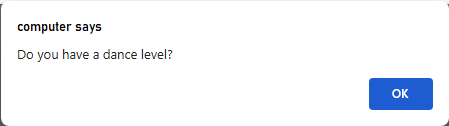
This also comes with a warning if a selection is not made.
Email:

An email to contact you is very important. It is the main means of communication.
If you place anything in this box except a legal, correctly form, email address this form will not proceed until the error is fixed.
If you have no email do NOT put a "no" or "none" in this box. Leave the default "type full email here"
If you accidently type something into this box and the form informs your typing is incorrect, remove everything you typed.
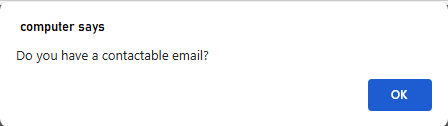
This also comes with a warning if an email is missing.
Qty Boxes:
 This is a column that requires a number.
Only put a number in the "QTY" box on the row that applies to you.
On the row that applies to you, put a "1" in place of the "QTY".
To correct a mistake, remove the number from the QTY box and the default "QTY" will return.
The NON ACA Member refers to a dancer (who wants to participate in the dancing) and who is not a member of ACA.
Non dancing spectators are always welcome, but please list their names and origin (i.e. State or Overeas Country) where shown.
 This will show the value of this row.
You do not have to do anything with column. This form will tally all this for you. This will be explained later.
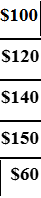 This column is fixed by the form. It is there as information.
Don't Forget These:
These are simple tick boxes, that operate exactly as the dance level boxes.


 There are 3 processes left
If you have filled out the form, you will have somethng lke this:
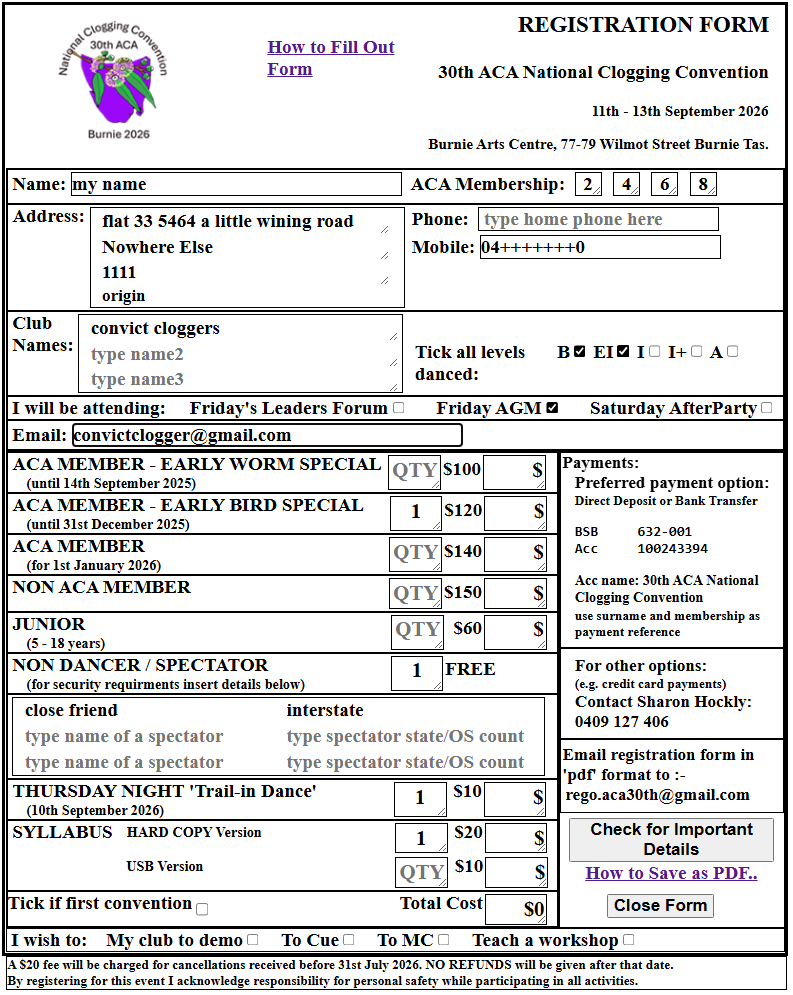
Step 1:
In the bottom right hand side off the form is the "Check" button 
"Click" on this button on the actual form, and the form will be checked. The following picture is the result.
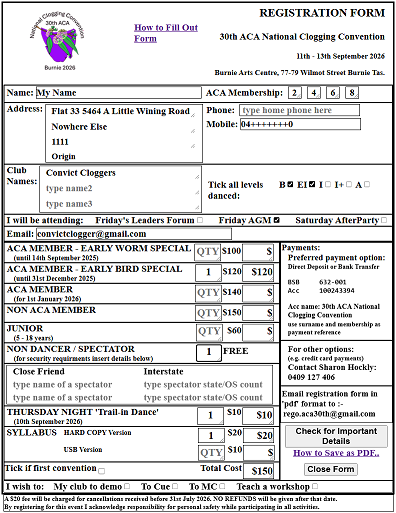
The most immediate difference is that the fields have been calculated and filled in.
Also all the text lines have been re-written with capital letters at the start of each word.
Step 2:
Step 2 is to save the whole form as a PDF file onto your computer.
In the bottom right corner, just below the Check button is the phrase How to Save as PDF file format.
 On the form, "click" this to open a guide to show you how to do this.
If you want to read this now How to Save as PDF..
Step 3:
In the bottom right hand side off the form is the "Close Form" button 
After you have "SAVED" the form as a PDF, "click" on the this button to clear all your details from the form and the web site.
If you forget to do this, your details will be erased when you close the browser.
This button is more of a peace of mind and a visual demonstration to you, that your privacy is being maintained.