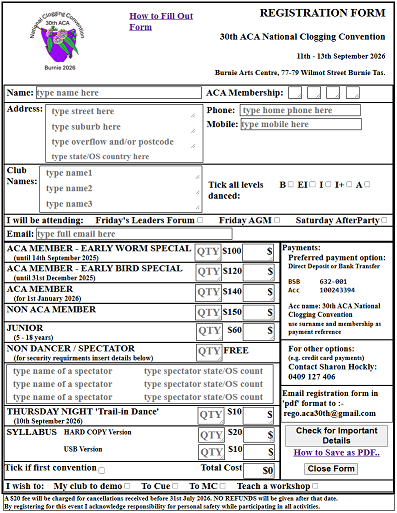
 2026 Registration form (with no information filled in)
 2026 Registration form (with no information filled in)
After the form has been filled out, it has to be saved as a "PDF" file and forwarded to "rego.aca30th@gmail.com".
Most modern browsers seem to do things similary. The following will cover Microsoft Edge in detail, followed by a quick look at Google and FireFox".
 An image like this sits in the top right corner of the edge window.
 The three dots circled is like a "more menus" button. "Click" on it using the mouse left button will open a fairly large, long drop menu."
Other Browsers
Google has  Firefox has
Back to Edge
When you "click" on the Little Dots this opens.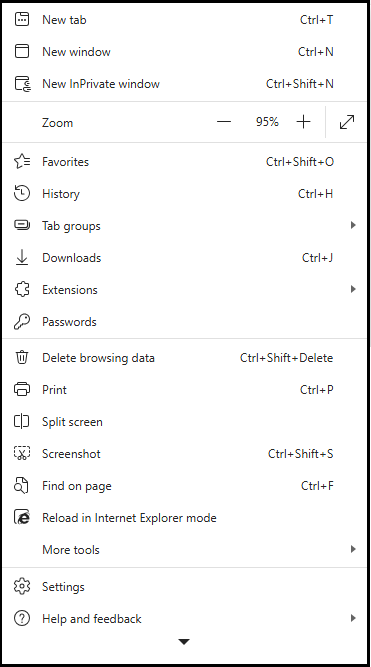 It's a bit large.
we're only interesting in the centre bit.
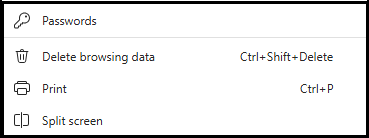 This is the centre bit.
Other Browsers
Google 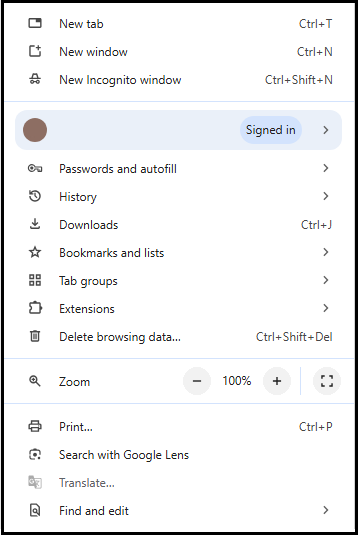 Firefox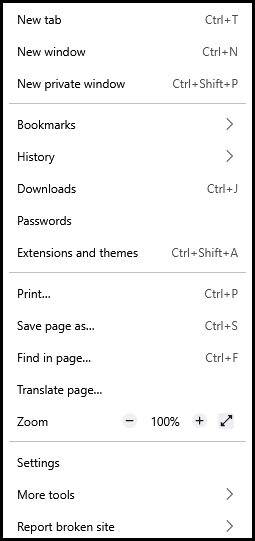
Back to Edge
Locate this section image on full "Edge" Print Menu
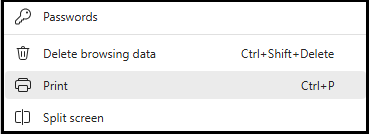 and "click" left mouse button on this menu item will open the browser "print" window.
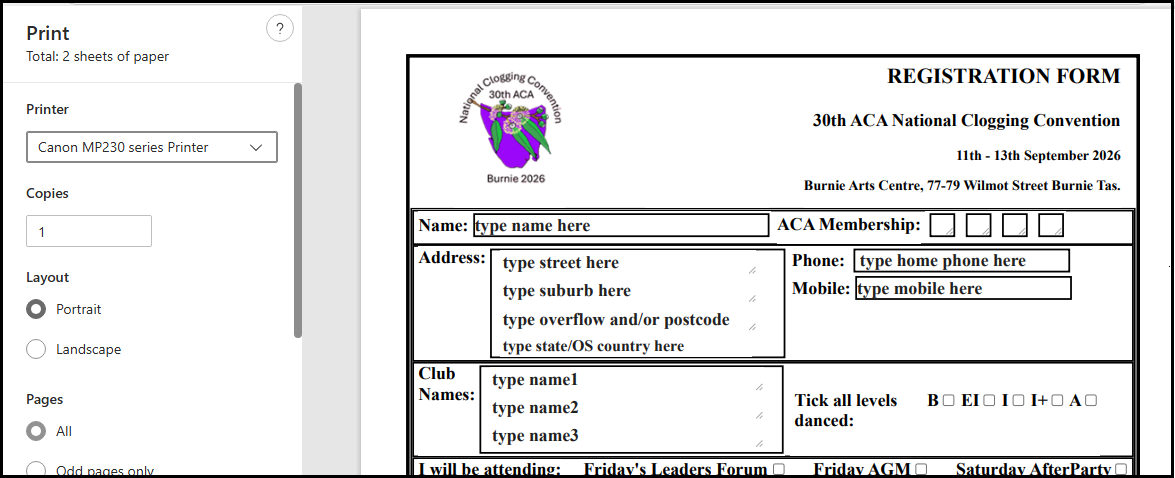
This is the top half of this window. Notice it displays an image of the form as well.
Other Browsers
Google: 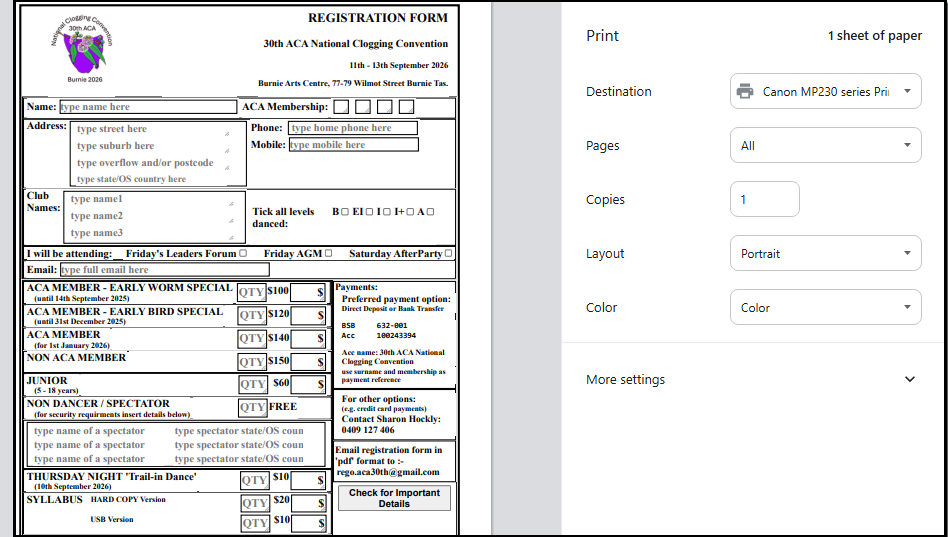
Firefox: 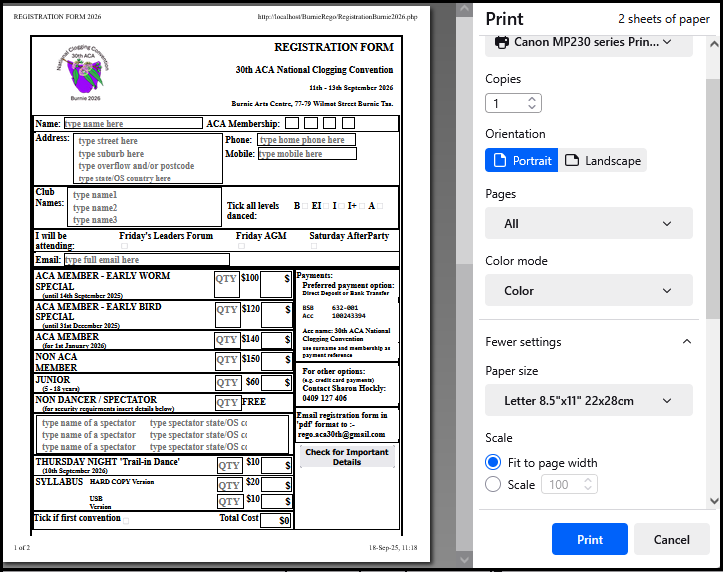
Back to Edge
First action is to change the printer to read "PDF".
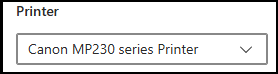 We need to print the page image into a "PDF" format, and not to an actual printer.
To do this, the little down arrow indicaes another drop menu. 
"Click" on this arrow head.
The drop menu will appear.
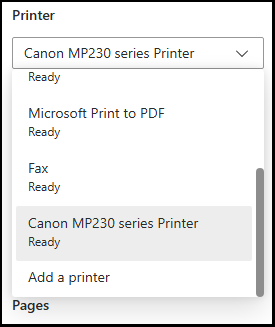 Scroll drop menu up,
 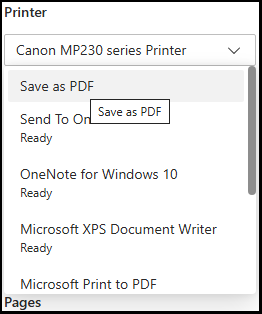 "Click: "Save as PDF". If you're using "Edge" ignore the "Microsoft Print to PDF".
The picture of the registration form will either flicker or clear entirely and repaint to accomoate the new choice.
At the top of the large drop menu above the "Save as PDF" is a note 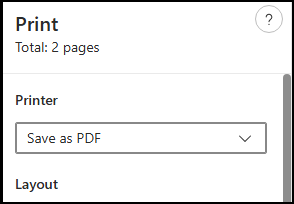 showing the image goes over 2 pages
This would be better if the whole thing is made fit on one page.(it's not critical as it stays as PDF file)
If your comment indicates a "Total: 1 pages", then skip ahead to the "SAVE" button.
As "Edge" is american the default page size is "Letter". "A4" is a slightly longer page, and so will accommodate our slightly longer form.
This is a setting we can change.
Other Browsers
For all of above both Google and Firefox have exactly the same layout as Edge.
Back to Edge
On the print drop menu, towards the bottom is a "More Settings" option
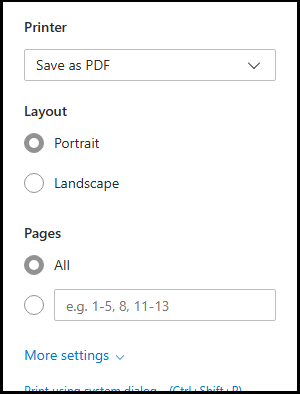 Circled to point it out,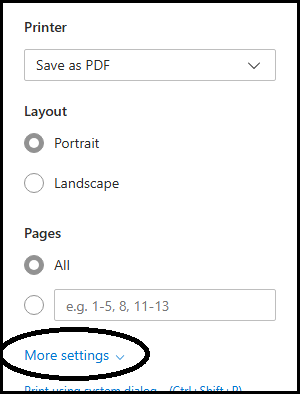
"Click" on the down arrow head symbol to open the menu.
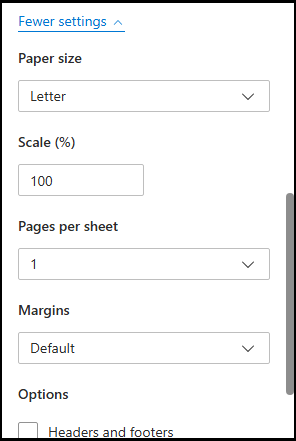 Notice the "More settings" changed to "Fewer settings"
The "Paper size" shows that the paper size is set to "Letter".
This is another drop menu. When you "click" on it, it will open to allow you a choice off page size.
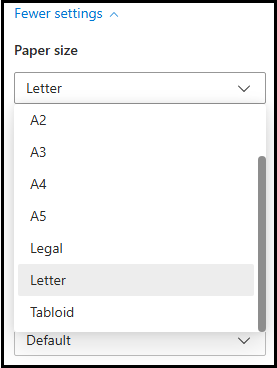 Open it and choose the "A4" setting.
The image of the "Registraton Form" will either flicker of vanish and repaint to a slightly longer page size.
The computer will adjust the "Scale %" to try and accommodate your choices and make it fit to a A4 page size. If it doesn't you can change the "Scale %" by clicking on the up/down arrows, but this shouldn't be necessary. The arrows only appear if the "%" is not 100%.
The margins can also be altered if you feel it needs it but it most probably will not be necessary. There is a no margins setting -None- if you feel it needs it
Your next move is to "click" the actual "Save Button"
SAVE BUTTON:
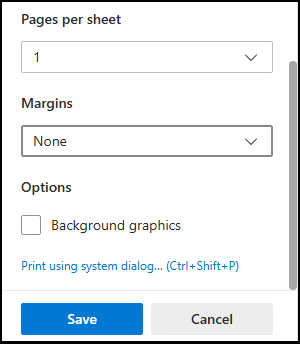 "Clicking" the save button will bring up the standard Microsft "Save as File" window.
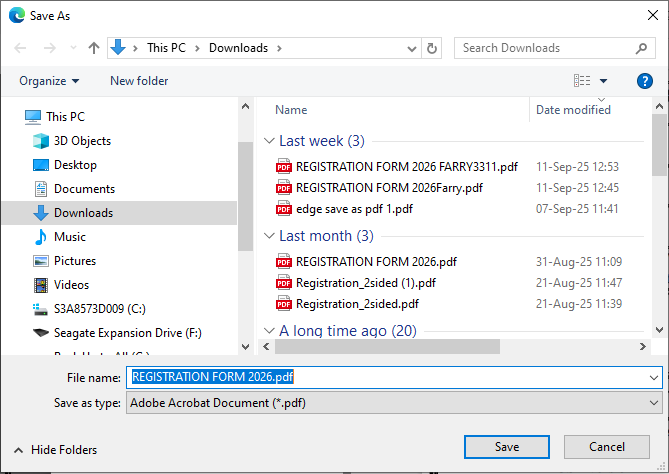
This is the standard window you can choose where on your computer you want the file to go and change it's name to whatever you want.
Once you have saved the "PDF" file onto your computer, you can then open up your email account and send the file to "rego.aca30th@gmail.com"
Other Browsers
For all of above both Google and Firefox have exactly the same layout as Edge.
Google: 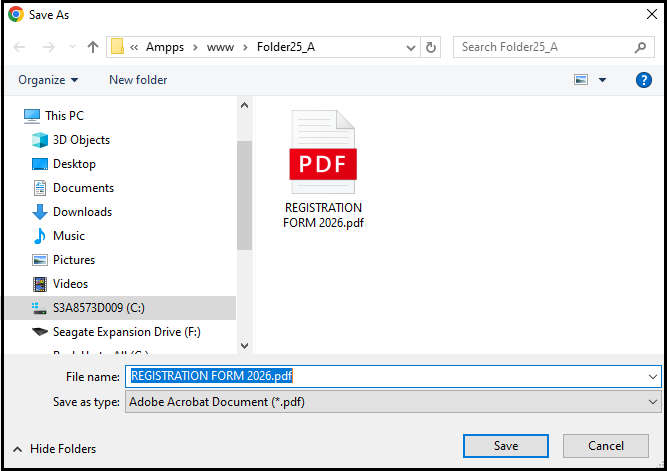
Firefox: 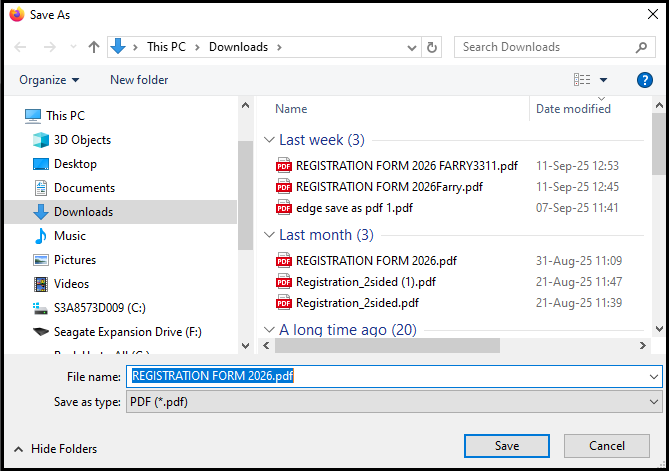
End of walk through If you've come from an open form, to this page. Go back and "click on the Close Form Button in the bottom right corner of form.
This will clean all your details of the form and from web site memory.